Get Column Totals with LotusScript

Here is a quick post in addition to my recent post on how to get sums / subtotals for a given category in a view with LotusScript.

totalsls

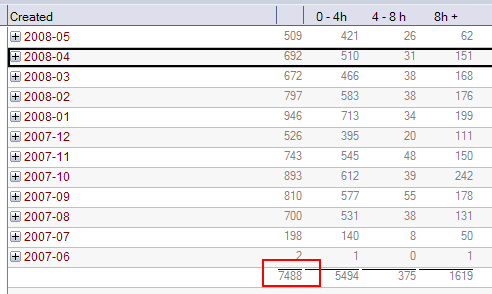
Assume, you want to get the total number of solved tickets. In my sample the value in question is located in column 7 at the very end of the ($ddTickets_ByMonthRep) view.

Here is the code that does the trick.

Sub Click(Source As Button)
	Dim s As New NotesSession
	Dim db As NotesDatabase
	Set db = s.CurrentDatabase
	Dim v As NotesView
	Dim n As NotesViewNavigator
	Dim e As NotesViewEntry
	Set v = db.GetView("($ddTickets_ByMonthRep)")
	Set n = v.CreateViewNav
	Set e = n.GetLast
	If e.IsTotal Then
		Msgbox e.ColumnValues(7)
	End If
End Sub

Get View Column Sums With LotusScript

I surfed the web the other day and came across an entry in OpenNTF’s codebin.  Ferry Kranenburg posted a sample database that shows, how you can create graphs using RMchart from Notes Views.

In his code,  Ferry uses the NotesViewNavigator class to search a view for a given key and to return the according view column values as a string when the search returns a match.

The original function (= var_FastViewLookup ) is very static, because the columns to return are hardcoded, so it cannot be used in other applications without modifications. So I decided to rewrite the function to be more generic. Here is the result:

Function var_FastViewLookup(_
db As NotesDatabase,_
View As String,_
Key As String,_
KeyCol As Integer,_
cols As Variant) As Variant 

	On Error Goto Err_Handle
	Dim nav As NotesViewNavigator
	Dim ve As NotesViewEntry
	Dim v As NotesView
	Dim i As Integer
	Redim colVal (1) As String
	If Trim(view) = "" Then Goto Exit_Here

	Redim colVal (Ubound(cols)) As String
	Set v = db.GetView(view)

	Set nav = v.CreateViewNav
	Set ve = nav.GetFirst

	While Not ve Is Nothing
		If ve.ColumnValues(KeyCol) = Key Then
			i = 0
			Forall c In cols
				colVal(i) = ve.ColumnValues(c)
				i = i+1
			End Forall
			Set ve = Nothing
		Else
			Set ve = nav.GetNextCategory(ve)
		End If
	Wend
Exit_Here:
	var_FastViewLookup = colVal
	Exit Function
Err_Handle:
	Resume Exit_Here
End Function

Here is a sample of how to use the function:

Sub Click(Source As Button)
	Dim s As New NotesSession
	Dim db As NotesDatabase
	Set db = s.CurrentDatabase
	Dim retval As String

	Dim KeyCol  As Integer
	KeyCol = 2 ' View column containing category search key

	Dim cols (3) As Integer
	cols(0) = 7 ' all tickets ( sum )
	cols(1) = 8 ' 0 - 4h
	cols(2) = 9 ' 4 - 8h
	cols(3) = 10 ' 8h +

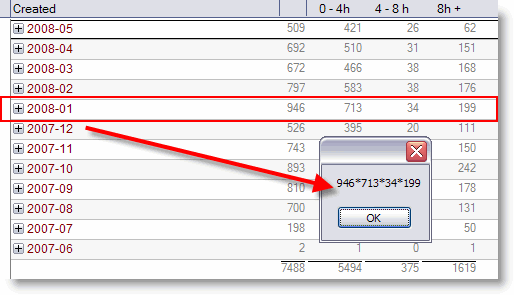
	retval = Join(_
        var_FastViewLookup(db , "($ddTickets_ByMonthRep)", "2008-01", KeyCol, cols), "*")

	Msgbox retval
End Sub

The sample returns the following value

columnvalues


Symphony Automation Database

Jens-B. Augustiny from LigoNet.ch posted a sample database to show. how you can access OpenOffice or Symphony from within LotusScript by using the COM-UNO Bridge, that comes with these two products.

symphonyautomation

The database in fact contains an application, which almost immediately with some small modifications may be used to create invoices, that will be generated through OOo/Symphony.


Undocumented: Create Empty NotesDocumentCollection

If you do not look that often into OpenNTF’s CodeBin like I do, then you might have missed this entry.  David J Montalvo discovered a yet undocumented method of the NotesDatabase class.

This method allows you to create an empty NotesDocumentCollection without doing workarounds that have beeen used for years like this one from LDD.

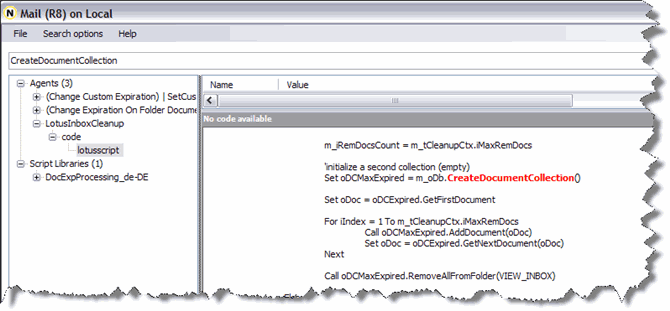
I searched mail8.ntf using Notes Design Searcher.

createdocumentcollection

The method is used in 3 agents and one ScriptLibrary. Searching mail85.ntf returns the same result.

There is also an idea on IdeaJam which can be closed once the method is documented in either Notes 8.0.x or in the upcoming Notes 8.5 release.


Custom Programming And Out Of Office Processing

Lotus Notes / Domino enables developers to integrate their applications with native Domino features. In order to understand when a custom programming would interact with Out Of Office’s processing, you must know the sequence in which Domino processes a document during message delivery.

Here is the order of execution:

  1. Router rules
  2. Custom callback routines started by the Extension Manager
  3. Mail rules
  4. Before-delivery agents
  5. Out Of Office service ( new in ND 8 )
  6. Maill message delivery
  7. Out Of Office agent

ISP change

Today I changed my ISP from freenet.de to all-inkl.com. freenet.de has hosted my blog for almost 5 years now, but due to some server restictions Iwas not able to upgrade to wordpress 2.7.

ALL-INKL.COM Webhosting

So I decided to look for a new ISP. all-inkl.com offers 10GB of diskspace and unlimited traffic for only € 7.95. The domain transfer started this morming at 8:00 and was completed only 7 hours later. DNS entries should be updated within the next 48 hours.


Read/Unread documents in Inbox

The following article prerequisites that you use a Notes Client 8.x , Basic Configuration and a screen resolution of 1024×768.

Up to release 7 of Lotus Notes, we had a lot of servicedesk calls regarding “deleted” documents in the user’s inbox. In most cases this was a result of the UI Design.

Users were confused or misinterpreted how the action button was labeled. From release 8 on, IBM replaced the “toggle” functionality and split the button into two checkboxes which behave as radiobuttons. Now it is easier to see, which option is selected. Less servicedesk calls so far, hooray!!

Sorry that the screenshots are in German; but I guess, that you will have the same problems in other languages, too.

Splitting the button into two seperate actions consumes a lot of space in the action bar. As a result, not all actions are shown in the actionbar. Instead you have to scroll the actionbar by clicking the “Right-arrow” – “Left arrow” images.

This is not very user friendly. The original idea of having only one button that toggles between read/unread documents isn’t bad, but from the users point of view it has to indicate the current state more precisely.

A checkbox is exactly what is needed. If it is checked, the inbox will only show unread documents, if it is unchecked, all documents are shown.

I replaced the existing formula in the shared “Show unread documents” action by the following formula:

@If(@GetViewInfo([IsShowingUnreadOnly])= 0;
@ViewShowThisUnread("1");
@ViewShowThisUnread("0") );

@Command([RefreshHideFormulas])

This enables the action to toggle between read/unread documents. In addition I hided the “Show All” action from Notes Client 4.6 and above.  More actions are now to be seen in the actionbar, but you still have to scroll.

Next I shortened the label and now all actions are shown in the actionbar.

Wwll, you might say that this is the way it worked in release 7. Yes it does, but the checkbox is the difference. It is only a small difference but users are now able to easy indicate the state of inbox.
Error moving user to another server

I had to move some users including mailfile from one server to another. Both servers are 8.0.2. When i looked into admin4.nsf, I found that the “Monitor New Mailfile Fields” request for two of the users ended with an error:

Title: Frank XXXXX File name: mail\fxxxxx; Name: OutOfOffice|OutOfOffice; Error: Cannot find user in Domino Directory
Title: Frank XXXXX File name: mail\fxxxxx; Error: Cannot find user in Domino Directory

The user does exist in the Domino Directory and can access the new server. I searched the Knowledgebase but could not find a solution. Obviously it has to do with the OOO Agent. Here is what I did to workaround the issue.

1. Open the mail file using the Domino Designer client and delete the OOO agent.

2. Replace the template design. The Out of Office agent will then be placed back into the mail file with a signature of either “Lotus Notes Template Development” or a company ID that has rights to run agents on behalf of others.

3. In the admin4.nsf database, select “Perform Request” again.


Strange logic

As every morning, I read the new entries in the Lotus Software KnowledgeBase. Today I stumbled upon one entry and even reading it again and again, it still seems to be a bit obscure.

Deleting a person using Adminp process removes the user name from fields on custom application.

When a user is removed from the Domino Directory using the “Delete Person” button, AdminP removes the user’s name from a Names field in a custom application.

This is working as designed.

You need to change the ACL setting on any application where you don’t want specific Names fields updated :

Go to the application -> Access Control->Advanced-> Action.  Set this to “Do not modify Names Fields.” This setting prevents AdminP from modifying the Readers, Authors, and Names fields.

OK, this is clear so far. But then the next sentence

Another option is to set the field to “Modify all Readers and Authors fields,” which will prevent AdminP from modifying Readers and Authors fields.

What kind of logic is this? I explicit say “YES, go ahead and modify all Readers and Authors fields!!” and this will AdminP prevent from doing so ?? I don’t get it!

{Technote #1288486}


Notes.ini WiKi

A few days ago Vladislavs Tatarincevs sent me this email

Hi, Ulrich,
in your blog, you have posted some posts that relates to notes.ini,
Maybe we could join forces to create a set of Notes.ini for server and client, and post it,
I think many young administrators will benefit from this.  😉
I have opened discussion on my blog, but only few people responded and shared their notes.ini settings.

What do you think?

vlad

I think, this is a good idea. There are already some sources, where you can find notes.ini related information.

Notes.ini Entries” and even IBM’s “Lotus Notes/Domino Notes.ini settings” database are only two of these sources. All have one thing in common. You have to know the parameter or a part of it to find information about this parameter. None of the sources are able to answer questions like: “How can I force my client to create ODS48 databases?”. This is only a simple sample and can be easily answered with “Add CREATE_R8_DATABASES=1 to your notes.ini and run compact -c”. But there might be also more difficult questions to be answered and sometimes adding a certain parameter can have side effects.

So we thougt that having a WiKi for this would be great and we would like to ask our Notes Community for some feedback. So please feel free to post your thoughs as a comment here or if you do not want to give your feedback in public, write me an email.

Looking forward to reading your feedback.


Service Dependencies

In our archiving project we sometimes have the problem that the retrieval of archived mails was not possible after the archive server was restarted. We use a third party archiving solution which not only archives mail documents but also SAP and filesystem. On one of the archive servers a Domino server is installed. This Domino controls the mail archiving part.

It was found that the issue occurs when the Domino service started before the JBoss service was started. So we had to ensure that JBoss has started and is available for use before the Domino service starts.

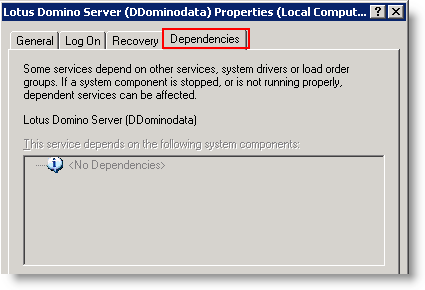
You might have seen, that some services already have dependencies. Double click a service in the service manager and navigate to the dependencies tab. Domino does not depent on any other service by default.

And, as you can see, there is no button or so to create a dependency or to delete an existing one. This has to be done by modifying the registry.

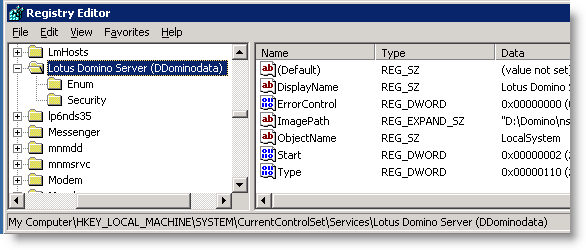
The Registry subkeys for services are located in the following path and can control how services are loaded.

HKEY_LOCAL_MACHINE\SYSTEM\CurrentControlSet\Services\<Service name>

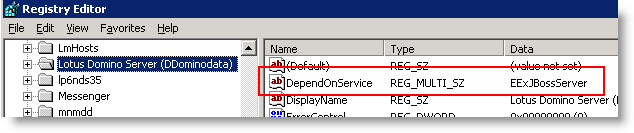
To create a new dependency, select the subkey representing the service you want to delay, click Edit, and then click Add Value. Create a new value name “DependOnService” (without the quotation marks) with a data type of REG_MULTI_SZ, and then click OK. When the Data dialog box appears, type the name or names of the services that you prefer to start before this service with one entry for each line, and then click OK.

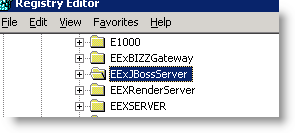
The name of the service you would enter in the Data dialog box is the exact name of the service as it appears in the registry under the Services key.

When the computer starts, it uses this entry to verify that the service or services listed in this value are started before attempting to start the dependent service.

Warning Adding this entry manually may prevent the system from starting properly if you establish a “circular dependency.” In its simplest form, such a problem would occur when you make two differing services dependent on one another.