After we successfully implemented DAOS on our productive servers, I wanted to create some statistics on how the DAOS repository changes over the time.
I could not find any build in statistics, so I had to find a way to get the data I wanted to collect and build some nice looking charts and graphs from this data.
Lets say, we want to have a historical overview about how the DAOS repository ( i.e. the DAOS Base Directory ) changes in size due to prunes and adding new attachments and we want to know, how many files are stored in the base folder and all subfolders.
If you follow IBM’s recommondation, you have a seperate drive for your DAOS repository. Then you can create a statistic for this drive. But does this stat will show you, how many NLO files are stored on this drive? No!
If you have a DAOS repository on a drive aside of other data, the drive statistic will not work well for you, because it does not show the data only for the DAOS repository.
Conclusion; we have too determine the DAOS folder size and the file count for the base folder and all subfolders. I searched Google and found many, many solutions for this.
1. Lotusscript and WMI
Set objFSO = CreateObject("Scripting.FileSystemObject")
Set objFolder = objFSO.GetFolder("d:\DAOS")
strFolderSize = Cstr(objFolder.Size)
2. Java
import lotus.domino.*;
import java.io.File;
import org.apache.commons.io.FileUtils;

public class DAOSRepSize extends AgentBase {

	public void NotesMain() {

		try {
			Session session = getSession();
			AgentContext agentContext = session.getAgentContext();
        		String DAOSBaseFolder = "d:/DAOS";

			File f = new File(DAOSBaseFolder);
        		long size = FileUtils.sizeOfDirectory ( f );
			System.out.println("Size: " + size + " bytes");

		} catch(Exception e) {
			e.printStackTrace();
		}
	}
}
Both, Lotusscript + WMI and Java have the disadvantage, that you have to scan all subdirectories seperately. This is very time consuming and took about 1 hour on the live system.
So i tried another approach and finally found the/my solution:
3. Good old DIR and FIND commands
The DIR command combined with the /S parameter displays the content of a folder and all its subdirectories.
The DIR command creates somthing like this on the display; each subdirectory reports FileCount and Size and at the bottom you find a summary of all Files and its size.
10.03.2009 09:25 12.226 FE882EC6BCA2169B4D48B584
2E99.nlo
470 Datei(en) 352.749.584 BytesAnzahl der angezeigten Dateien:
470 Datei(en) 352.749.584 Bytes
5 Verzeichnis(se), 54.691.553.280 Bytes frei
You can use the output from the Dir /S as input for the FIND command.
C:\WINDOWS\system32\cmd.exe /C “dir D:\Programme\IBM\Lotus\Domino\data\DAOS /s | find /I “File(s)” > c:\temp\DAOS_SERV01_%Date%.txt”
This commandline creates a textfile with the following content:
0 File(s) 0 bytes
40000 File(s) 14.765.039.757 bytes
40000 File(s) 16.137.319.939 bytes
39982 File(s) 15.409.206.655 bytes
39977 File(s) 12.258.017.367 bytes
39981 File(s) 12.953.697.877 bytes
39911 File(s) 13.429.407.386 bytes
39998 File(s) 12.668.978.548 bytes
39918 File(s) 12.735.446.658 bytes
39939 File(s) 13.405.251.936 bytes
39999 File(s) 14.543.864.272 bytes
40000 File(s) 18.486.530.559 bytes
39997 File(s) 15.527.680.149 bytes
39990 File(s) 11.587.766.203 bytes
39975 File(s) 13.679.295.122 bytes
39984 File(s) 15.774.269.341 bytes
39990 File(s) 14.484.397.076 bytes
39937 File(s) 14.256.113.580 bytes
39999 File(s) 13.542.828.429 bytes
39998 File(s) 15.007.972.785 bytes
39885 File(s) 12.793.036.296 bytes
28249 File(s) 7.986.253.672 bytes
827709 File(s) 291.432.373.607 bytes
Where method 1 and 2 needed almost 1 hour to complete, the DOS commands only run 20 minutes. I run this command as a scheduled task at 1:00 am.
A small agent now reads the files and imports the data into a Notes database.
Sub Initialize
	Dim s As New NotesSession
	Dim db As NotesDatabase
	Dim doc As NotesDocument
	Dim item As NotesItem
	Dim fileNum As Integer
	Dim fileName As String
	Dim pathName As String
	Dim FilePattern As String
	Dim ServerName As String
	Dim FileDate As String
	Dim FileCount As String
	Dim DirSize As String
	Dim text As String
	Dim dummy As Variant

	Set db = s.CurrentDatabase

	pathName = "c:\temp\"
	FilePattern = "DAOS_*.txt"
	fileName = Dir$(pathName & FilePattern, 0)

	Do While fileName <> ""
		Msgbox filename
		dummy = Split(FileName,"_")
		ServerName = dummy(1)
		FileDate = Replace(dummy(2),".txt","")

		fileNum% = Freefile()
		Open PathName & fileName For Input As fileNum%

		Do Until Eof(1)
			Line Input #fileNum%, text
		Loop

		Set doc = db.CreateDocument
		dummy = Split ( Trim(text)," " )
		With doc
			.Form = "DAOS.Folder.Size"
			.FolderSize = Replace(dummy(2),".","")
			.CreatedBy = s.UserName
			.ServerName = ServerName
			.FileCount = dummy(0)
			.FileDate = FileDate
		End With
		Call doc.Save (False, False)

		Close fileNum%
		Kill PathName & fileName
		fileName = Dir$()
	Loop

End Sub
Another agent which is invoked via a web browser will create a Line Chart. The agent uses Macromedia Fusion Charts.
Sub Initialize
	Dim s As New NotesSession
	Dim db As NotesDatabase
	Dim doc As NotesDocument
	Dim head As Variant
	Dim graph As Variant
	Dim i As Integer
	Dim v As NotesView
	Dim hSize As String
	Dim vSize As String
	Dim yAxisMinValue As String
	Dim yAxisMaxValue As String
	Dim xAxisName As String
	Dim caption As String

	hSize = "800"
	vSize = "600"

	caption = "DAOS"
	xAxisName ="Date"
	yAxisMinValue = "280000000000"
	yAxisMaxValue = "350000000000"

	Set db= s.CurrentDatabase
	Set v =db .GetView("DAOS.Folder.Size")

	head= _
	{}
	Print head
End Sub
Here is what you’ll see in the browser
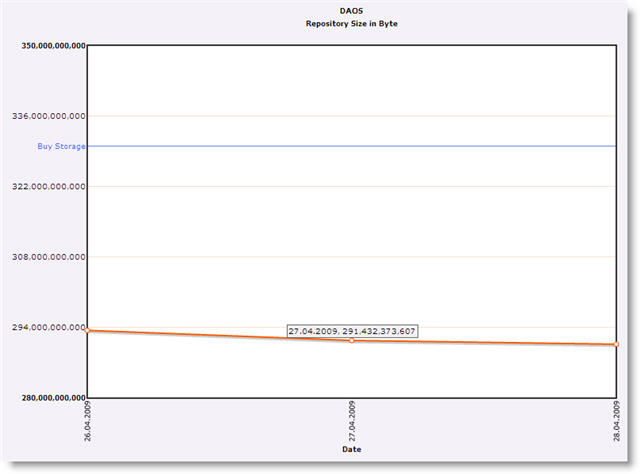
The chart shows, what the log file on the domino server does not shows.
Ulrich, excellent post.
EXCELLENT! Thanks for doing this, I was wondering myself and had just used the DOS way, but this will automate it much better.
Ulrich,
So when are you posting the sample DB on OpenNTF – lol
Here is a database with the source code: https://www.eknori.de/_data/daosfolder.rar
what would be interesting is to see how much of these .nlo files are ready to be deleted due to prune… so for example if you get that 70% of the files are ready to be pruned then you will know that 70% of the space is wasted.
Mariano: Good idea. Start your Designer and post your code here 🙂