VMWARE: Converting Multiple VMDK files into one

VMware supports both growable and pre-allocated virtual disks. In addition, the disks can be specified to be contained in a single file, or divided into multiple 2GB files

I recently had to work on some older VMs and thought it would be a good idea to do some housekeeping. Renaming the machines and vmdk files to a more meaningful name and also consolidating multiple 2GB file into a single one.
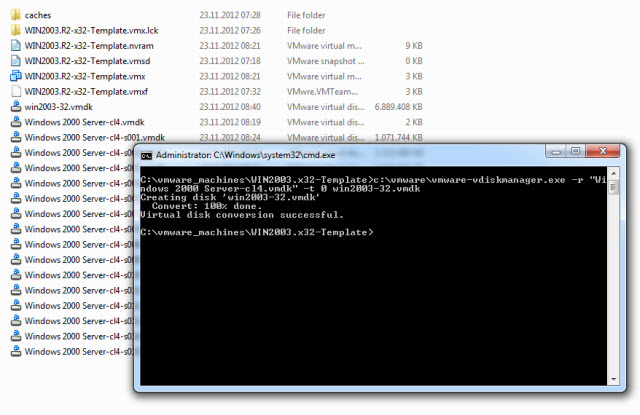
All these tasks can be done in one single step using the VMware Disk Management Tool

The VMware Disk Management Tool is a command line tool which is installed by default with VMware Workstation or Server.
The executable file is named vmware-vdiskmanager and is located in the VMWare program directory on Windows hosts, and /usr/bin on Linux systems.
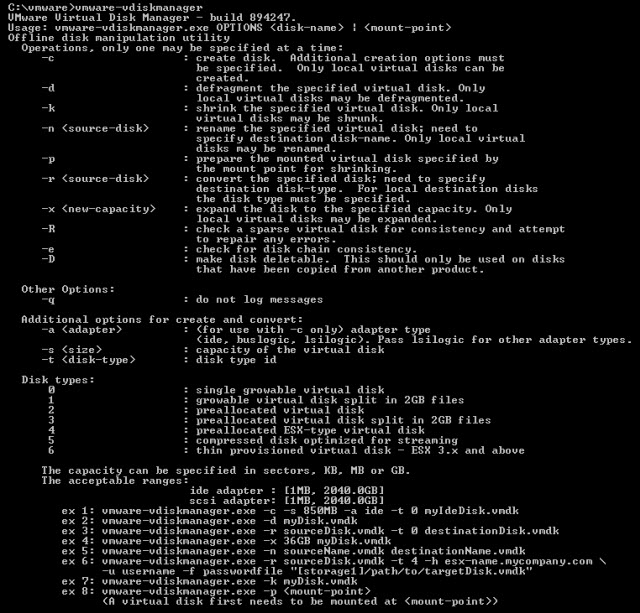
To convert multiple VMDKs into a single file, I used the following command (Windows 2000 Server-cl3.vmdk is the name of the first VMDK file – i.e. the one attached to the VM):

vmware-vdiskmanager -r “Windows 2000 Server-cl4.vmdk” -t 0 win2003-32.vmdk

The above operation takes a while, but not too long. It shows its progress as it completes.

Next, you can configure your VM to use the new VMDK file and delete the obsolete files from the disk.
Convert VirtualBox (vdi) hard drive image to VMWare (vmdk) format

I recently installed VMWare Workstation 9 on my laptop. I also have VMWare Server 2.0.2 running. Using virtual machines from VMWare Server on the workstaion is not a problem. But I have a couple of virtual machines that have been created with VirtualBox.

The vdi files are not compatible with VMWare Workstation or Server.

Fortunately, the VBoxManage utility of VirtualBox can actually convert a VirtualBox vdi image to the vmdk format used by VMWare. It can do it rather easily, as well.

The command format is:

VBoxManage clonehd

[–format VDI|VMDK|VHD|RAW|]
[–variant Standard,Fixed,Split2G,Stream,ESX]
[–existing]


Example (Windows):

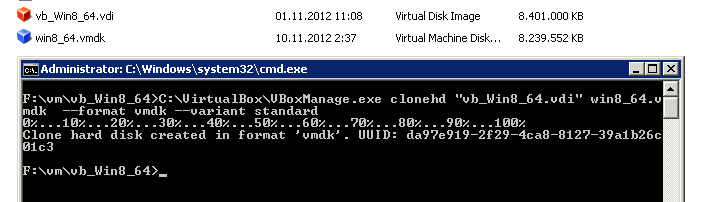
C:\VirtualBox\VBoxManage.exe clonehd “vb_Win8_64.vdi” win8_64.vmdk  –format vmdk –variant standard

Successful run gets this output:

Next, open VMWare and select Create a new virtual machine

  • Select “I will install the operating system later”
  • Make your OS selection about the OS that’s currently on the vmdk you will be using. (The guest OS, not the host OS).
  • Later on, you will have the option to use an existing vmdk image as your virtual hard drive. Do so.

You should now be able to finish setup and boot your converted disk image.


Windows 8 – Get The Start Button Back

When users found out that Microsoft’s next version of Windows wouldn’t have a Start button, they panicked.
Replaced in Windows 8 by the user interface formerly known as “Metro,” that tiny button is apparently so important to long-time Windows users that they can’t imagine life without it.
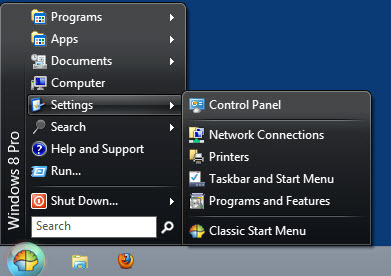
Rest easy, neophobes — adding the Start button back to Windows 8 is easy and free.


Windows developer Ivo Beltchev has created a utility called Classic Shell . The utility allows users to bring back the classic Windows Start menu layout and customize it in a number of ways.


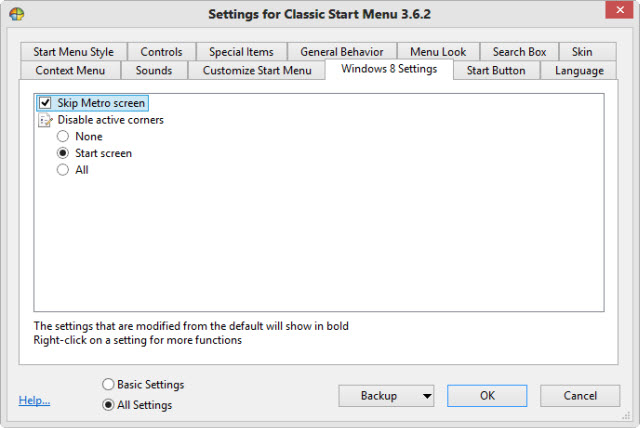
In addition to getting the Start Button back, ClassicShell allows you to directly display the desktop instead of the still uncommon start page.


UPDATE: ClassicShell also works on Windows Server 2012