Neuwahlen im März 2006 ?

Höre ich mir so die Nachrichten an, sieht es fast so aus … was juckt es mich; da gehe ICH nicht hin.
“Münte” hat seinen Kandidaten für den Vorstand nicht durchgebracht und schmollt nun; Stoiber zieht es nunmehr wieder in die Wälder ( “Schickt den Stoiber in die Wälder wegen der Semestergelder hallte es 1979 durch Münchens StraÃ?en ).
Und “Angie”; blass und farblos, sieht sie sich nun mit einer “neuen Linken” konfrontiert, die sie bei den Koalitionsverhandlungen mit der “alten Garde” gar nich berücksichtigt hatte.


Pad A Number Field With An Exact Number Of Leading Zeros

If you have a number that needs to be padded with leading zeros, this technique does it using Formula language. The same technique (with appropriate syntax changes) can be used in most programming languages.

Padded := @Right( "00000000" + @Text(Number); 8)

This example returns an eight-character text string (stored in variable “padded” in this example). This string consists of the original value in the Number field, padded with leading zeros to a total length of 8 characters. For example, Number 123 results in Padded 00000123.


Play MP3 without WINAMP using Lotus Script

Do you remember “MP3 PlayMate ” for Lotus Notes written by Allan Reinhold Kildeby ?

Well, it is a very nice tool, but you need Winamp to play the mp3 files.
Today it is one of these boring sundays and I thougth to myself: “Wouldn’t it be nice to play the mp3s directly thru some nice API code ? “.

By using MCI, you can play most media files. but normaly, it doesn’t work for MP3. This is because mp3-data needs to be rendered specially. After a beer or two i had an idea while looking at the code using DirectShow: why not play the mp3-files as VIDEO? OK, here’s how it works:

(1.) Declare the Function

Declare Function mciSendString Lib "winmm.dll" Alias "mciSendStringA"_
(Byval lpszCommand As String,_
Byval lpszReturnString As String,_
Byval cchReturnLength As Long,_
Byval hwndCallback As Long) As Long

(2.) Use “mciSendString” to invoke the commands:

Syntax: mciSendString(sCommand, 0, 0, 0)

where sCommand is:

Load the mp3 file:=  “open ” & sMp3FileLocation & ” type MPEGVideo alias Mp3File”
Play the mp3 file (Now you can use the Alias):= “play Mp3File” from 0″
Pause:= “pause Mp3File””
Stop:= “stop Mp3File”
and unload from mem, unlock file:= “close Mp3File”

(3.) put the commands into a button for testing purpose

Sub Click(Source As Button)
	Dim sCommand As String
	Dim sMP3FileLocation As String
	sMP3FileLocation = "whateverMP3youlike.mp3"
	sCommand = "Open " & sMP3FileLocation & "  type MPEGVideo alias MP3File"
	Call mciSendString(sCommand, 0, 0, 0)
	scommand = "play MP3File from 0"
	Call mciSendString(sCommand, 0, 0, 0)
	Msgbox "OK"
	scommand = "stop MP3File"
	Call mciSendString(sCommand, 0, 0, 0)
	scommand ="close MP3File"
	Call mciSendString(sCommand, 0, 0, 0)
End Sub

(4.) tweak PlayMate
(5.) Have fun !!


Code eines View Icon ermitteln

iconcode

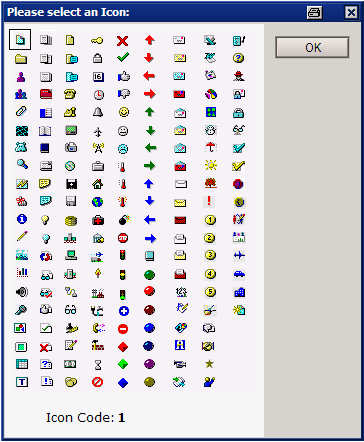
“Wert als Symbol darstellen” ist in Ansichten eine schöne Möglichkeit zur Visualisierung von Feldinhalten etc. In einem Konfigurationsdokument soll dem Admin der Datenbank die z.B. Möglichkeit gegeben werden, die Auswahl der Icons selber vorzunehmen. Aber wie war noch gleich der Wert eines bestimmten Symbols ?

Die Maske kann an geeigneter Stelle mit der Formel

@DialogBox("($dlgIconCode)"; [AutoHorzFit] : [AutoVertFit] : [NoCancel] ; "Please select an Icon:");
@Command([ViewRefreshFields])

ausgerufen werden. Die Icons und der zugehörende Code können dann bequem interaktiv ausgewählt und in das Konfigurationsdokument übernommen werden.

DOWNLOAD


Check Formula Syntax

Beim Erstellen von Aktionen, die in Masken oder Ansichten eingebunden werden sollen überprüft Lotus Notes automatisch beim Speichern, ob die Syntax der eingegebenen Formel richtig ist.

Was aber, wenn man eine Formel an ein db.search übergeben möchte? Man kann natürlich die zu verwendende Formel im Developer Client von Lotus Notes überprüfen lassen und dann in seinen Script Code einbinden. Das funktioniert solange, wie man mit starren Formeln arbeitet.
Wie prüft man aber die Validität einer Formel, wenn diese z.B. über ein Konfigurationsdokument eingegeben wird.
( z.B. in !!HELP!! ) ?

Seit Version 6 gibt es die Formel @CheckFormulaSyntax( Feldname ). Feldname enthält die zu prüfende Formel.

CAPTION	:= "Formula Syntax Check";
SYNTAX_OK:= "Formula Syntax is OK";

Result	:= @CheckFormulaSyntax(nFormula);
Error	:= Result[1];
Line:= Result[2];
Column:= Result[3];

@If(Error = "1";
	@Prompt([Ok]; CAPTION; SYNTAX_OK);
	@Prompt([Ok]; CAPTION; "Line " + Line + " Column " + Column +": " + Error)
)

Wie ich eingangs erwähnt habe, gibt es die Formel erst ab Version 6. Aber auch unter R5 lässt sich die syntaktische Richtigkeit einer Formel überprüfen. Dazu bedarf es aber der Notes API. Die hier beschriebene Version funktioniert auf Windows Clients.

Read More


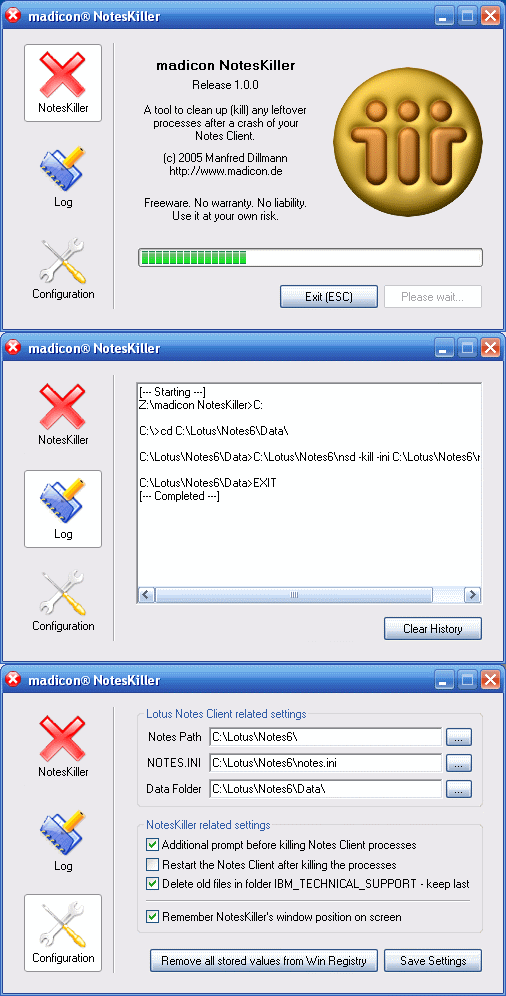
madicon NotesKiller 1.0 (English) – Freeware

Manfred Dillmann stellt ein kleines Programm zum Download bereit, welches das Eintippen des NSD Aufrufs von der Kommandozeile in eine anwenderfreundliche GUI verlagert.

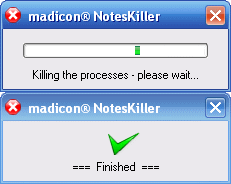
A Windows 32 tool to clean up (kill) any leftover processes after a Crash of your Notes Client – your running Notes Client will be killed, too… 😉

UPDATE 1.2.0

– Now stores all settings in the file noteskiller.ini
– Delete the file Cache.DSK or Cache.NDK (optional)
– Calls NLNOTES.EXE instead of NOTES.EXE during the restart (optional)
– Runs in “silent mode”. Use the command line switch -s

madicon NotesKiller 1.2.0

Rebuilding a Notes Mail Inbox

Your Inbox in your mail file has become corrupt for whatever reason. Because the Inbox is a folder, it does not use selection formulas to give a collection of documents. It is built by the router depositing messages there. Once the folder is destroyed or replaced, the collection is lost with it. After replacing it with a new one, only new documents will be deposited in it from that point on.

Below is a script that can be used to repopulate your Inbox with the older mail messages that have not been currently filed in folders. The script can be placed in a button and mailed to the users who need it.

Read More


Verbalizer: Updated code using MSAgent to read e-mail aloud

After receiving years of email, feedback, and support for my first published article on SearchDomino, Using MSAgent to vocally/audibly read e-mail aloud, I ( = Brian Downs ) discovered that implementing the code on a Win2000 system required more than a few changes, and I thought I might share that updated and commented code with all my good friends here.

What this code does is to hijack Clippy….ah, err… I mean, utilize Microsoft Agent (MSAgent), to audibly read any text string fed to it aloud. Having no need to display the agents’ animation, we send Clippy to the netherregions of negative coordinates, enabling users to hear the agents’ “voice” without subjecting them to MSAgents’ animation.

Insofar as MSAgent is automatically installed with every modern Windows OS, its a pretty sure thing that this code *should* run on nearly all Wintel boxes in your organization. You may need to reorient the location of the “Merlin.acs” file to match your configuration, though.

Additionally, beyond the code and the Merlin.asc location, there is one last piece necessary for this to operate — an MSAgent object must be placed on the form on which the code is to run. Select whitespace on your form, and select ‘Create/Object’ in Designer. Switch the first option from ‘Object’ to ‘Control’, and in the Object TYpe selection list search out the “Microsoft Agent Control 2.0”, which will place a small icon representing the object. You can hide this object using the Text Properties box.

As in my original post, you’ll need to cobble together your own @ReplaceSubstring and @Contains scripts; SearchDomino has more than a few posts concerning both. And, as before, I’m still searching for a more elegant means of determining where a response post ends and its quoted original begins; currently, we’re testing for a “—-forwards” string, but I’d be pleased if anyone might suggest a better way.

Read More


Control e-mail with Domino Mail Rules

Using Domino Mail Rules and Passwords, you can control how e-mail is sent to a large number of recipients and protect inboxes from unwanted messages.

1. Create a Group named ej: “Mail Password” and add your own name to the member list.
2. In the Internet address field put the password followed by your domain — Ej: 987654@yourdomain.net
3. Save the group document.
4. Create a Domino Mail Rule in the Configuration document with this content.
5. If “To or CC” is All Company and “BCC” is not 987654@yourdomain.net – don’t accept the message.

via searchdomino