[C++] – A plain simple sample to write to and read from shared memory

If you have two programs ( or two threads ) running on the same computer, you might need a mechanism to share information amongst both programs or transfer values from one program to the other.

One of the possible solutions is “shared memory”. Most of us know shared memory only from server crashes and the like.

Here is a simple sample written in C to show, how you can use a shared memory object. The sample uses the BOOST libraries. BOOST libraries provide a very easy way of managing shared memory objects independent from the underlying operating system.

#include <boost/interprocess/managed_shared_memory.hpp>
#include 

using namespace boost::interprocess;

int main()
{
	// delete SHM if exists
	shared_memory_object::remove("my_shm");
	// create a new SHM object and allocate space
	managed_shared_memory managed_shm(open_or_create, "my_shm", 1024);

	// write into SHM
	// Type: int, Name: my_int, Value: 99
	int *i = managed_shm.construct("my_int")(99);
	std::cout << "Write  into shared memory: "<< *i << '\n';

	// write into SHM
	// Type: std::string, Name: my_string, Value: "Hello World"
	std::string *sz = managed_shm.construct("my_string")("Hello World");
	std::cout << "Write  into shared memory: "<< *sz << '\n' << '\n';

	// read INT from SHM
	std::pair<int*, std::size_t> pInt = managed_shm.find("my_int");

	if (pInt.first) {
		std::cout << "Read  from shared memory: "<< *pInt.first << '\n';
	}
	else {
		std::cout << "my_int not found" << '\n';
	}

	// read STRING from SHM
	std::pair<std::string*, std::size_t> pString = managed_shm.find("my_string");

	if (pString.first) {
		std::cout << "Read  from shared memory: "<< *pString.first << '\n';
	}
	else {
		std::cout << "my_string not found" << '\n';
	}
}
[How To] – Create your own IBM Notes Splash Screen

Inspired from Thomas Bahn’s post, I started to play with the IBM Notes Start Screen.

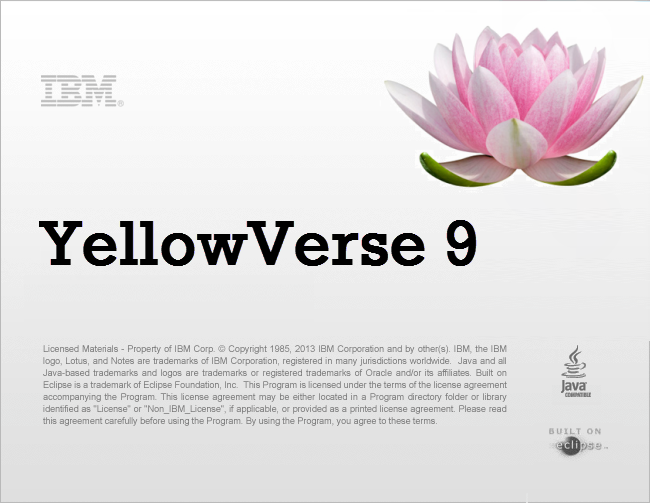
My first “creation” was “YellowVerse 9“.

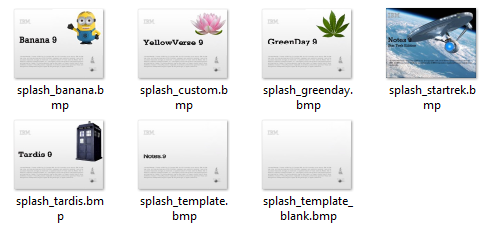
splash_custom

This technote describes what you need to replace the original start screen with your own creation.

It is important, that you save your image as Windows BMP. This is the only format that the IBM Notes client can handle.

To modify the existing splash.bmp image, I’ve used Snagit. But it also works with MS Paint.
And, if you own a more sophisticated graphics program and a graphic tablet, then you have much more possibilities.

The main challenge is to find images, that can be made transparent. While the .bmp format does not support transparency, it is possible to add tranparent images as an additional layer to the .bmp.

For your convenience, I have added image templates that can be used as a starting point.

You can also build your very own splash screen. The basic .bmp image needs to be 650x503px. But if you really want to do it from scratch, you propably need more than just a simple graphics program.

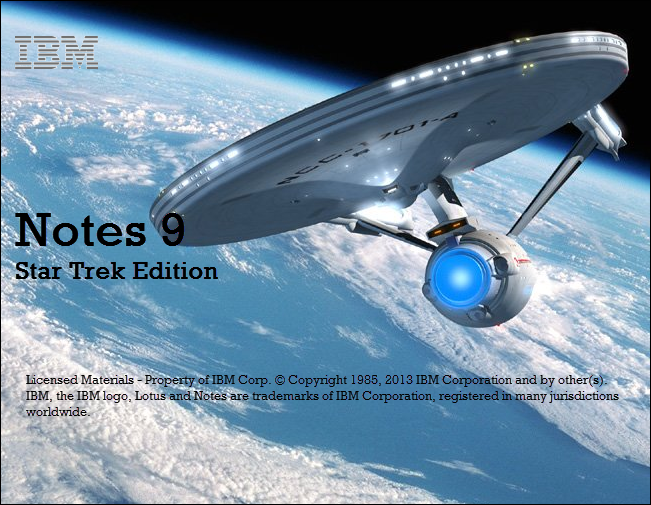
Here is, what I did with SnagIt.

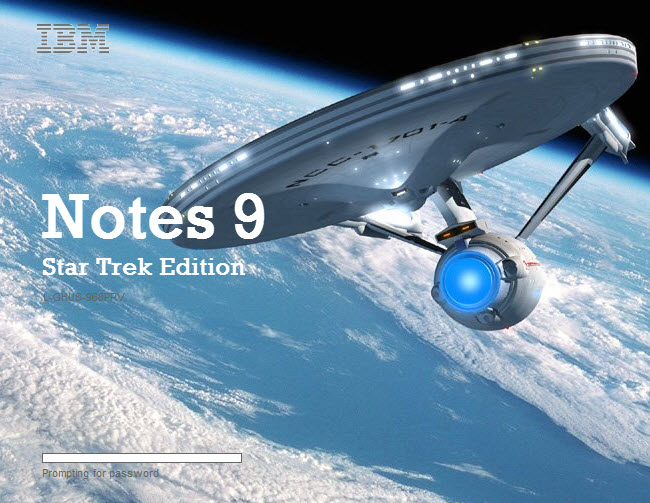
splash_startrek

A couple of people asked on Twitter and other social media channels for the already posted splash screens. You can download them here.

splash_summary

This is nothing that enhances productivity or even a new way to work. It’s a time killer, but fun …

Update: here are some more …

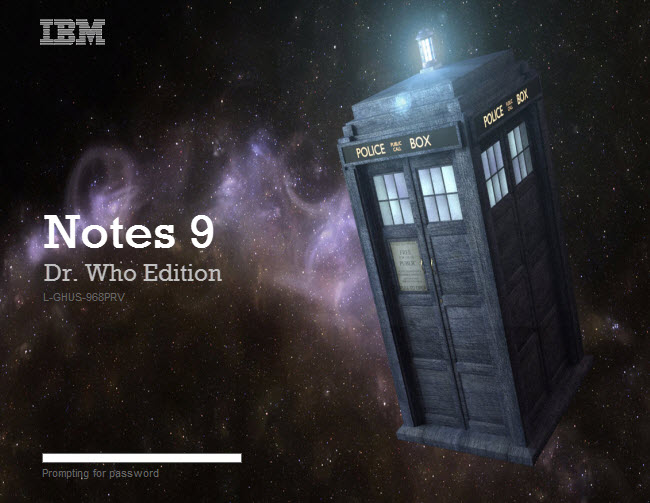
splashdrwho

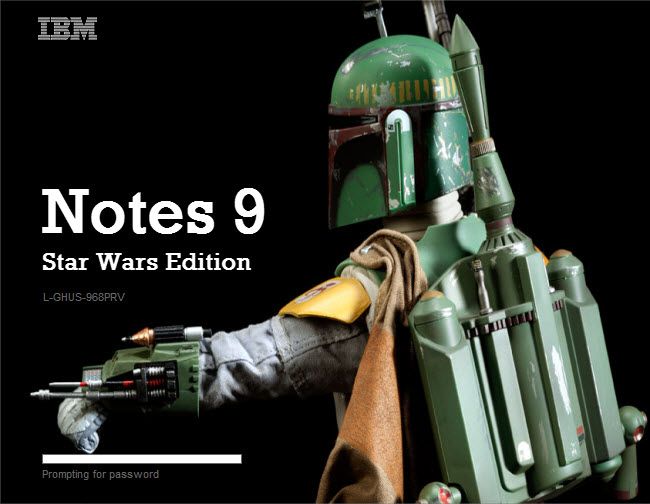
starwarssharon

splashstartrek3

Download additional files


VMWare Workstation – Unable to open kernel device “.\Global\vmx86” : The system cannot find the file specified

I recently upgraded my VMWare Workstation from Version 10 to 12. The software is running on Windows 10/64.

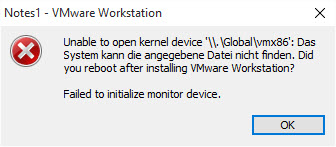
I never had any issues with VMWare Workstation 10 on Windows 7, 8 and 8.1. But after the upgrade, almost after every restart I saw the following error message when I tried to start a VM

vmissue1

There are several Google search results, even for older versions. Here is the most recent one, that adresses the issue and provides a ( non working ) workaround.

I uninstalled, rebooted, installed the software as advised in the technote. After several restarts it seemed to work, but the error message returned right after the next system restart.

I then looked at AntiVirus and AntiMalware software as a potential candidate for the trouble. I found a couple of registry entries that had been identified to be ‘potentielly unwanted’ and quarantined.

I restored them and after a restart I could start the VMs. Problem solved !

Err, not really.

The error message returned this morning … Damn.

Next, I looked into the Event Log. Not really helpful, because it only said that something went wrong, but no further information.

But I could at least see a pattern. Each time, the error ocurred, It looks like some service was not started because of missing dependencies.

Next, I ran services.msc and found the following.

vmissue2

I tried to start the services manually. Both services started without any errors. And also, I was able to start the VMs.

I am not really sure what causes the service start to fail; looks like some kind of bad timing.

I will now change the service startup from automatic to manual and add some start/stop scripts to my desktop.

I do not use the VMs on a daily basis; so starting the VMWare services manually will also save some system resources.


Speaking at SNoUG

After 2013 & 2014, I again have the honor to speak at SNouG ( Swiss Notes User Group ) in Zurich on 28-Oct-2015

My session is titled “Honey, I shrunk the data!”. This session has been held a couple of times before at various user groups, but it seems that there still is a strong interest in this topic.

I will not only cover data and design compression, DAOS and some new compact features. The session also includes all things DBMT as well.

See you in Zurich!